
02 · Cars

Your car, one shot

Cars hold their shape better than faces. If the photo is already on a road, the video prompt only adds the move. The coast idea is a different prompt, still from that same photo.

Works best with
A clear side or three-quarter view, the whole car visible, decent light.
Skip it if
A car lost in a car park, heavy crop, or a plate you need to stay readable.
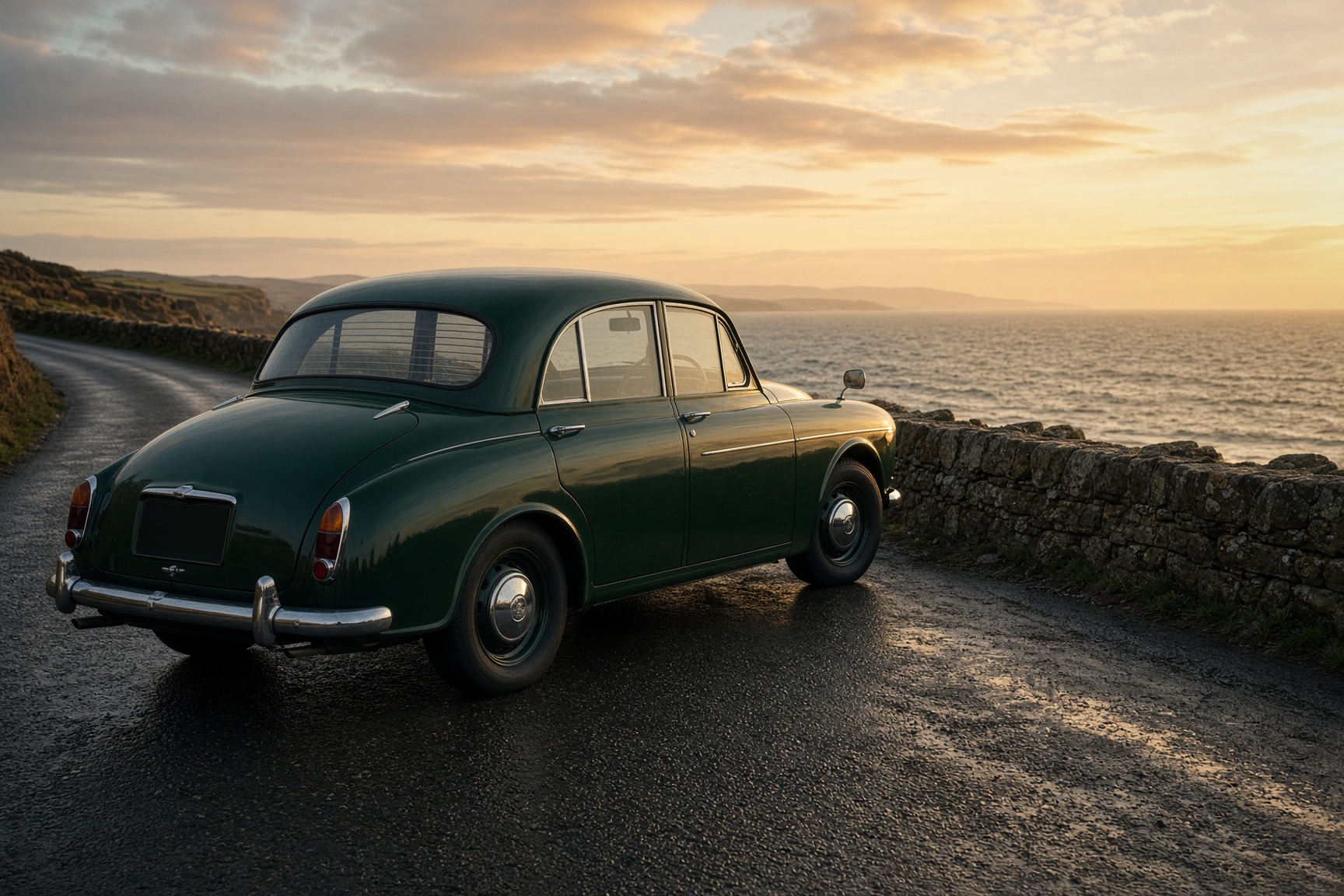
A dark green vintage car on a coastal road in warm evening light
A stand-in still so you can see the idea. Generate yours from your own photo.

Photo check

Tick these before you spend a credit. They are the difference.

Pick one

A video box makes the clip. A photo box makes a still. Start each one from the photo you took. Do not save one and upload it into the other.

Already on the road

The photo is already outdoors and the car is the subject.

Video

Upload the photo you took. Paste only these words.

  1. 1

    Open flow.google.com, sign in, and click + New project.

  2. 2

    In the prompt box, click the model name, then Video, then Frames.

  3. 3

    Drag the photo you took onto + Add start frame. Do not add an end frame.

  4. 4

    Paste the video words. That one prompt is the whole clip.

  5. 5

    Set generation length to 6s and one output. Choose a vertical shape if you see it, then Generate.

Words for the video

Use the uploaded photo as the clip. Keep the car’s colour and shape. It rolls gently forward. The camera follows slowly from the side. Soft wind and a light engine note. No driver, no speech.

Move it to the coast

A different place, still from the photo you took. The photo prompt is a separate still.

Video

Upload the photo you took. Paste only these words.

  1. 1

    Open flow.google.com, sign in, and click + New project.

  2. 2

    In the prompt box, click the model name, then Video, then Ingredients.

  3. 3

    Click Add and upload the photo you took. Do not make a new picture first.

  4. 4

    Paste the video words. That one prompt is the whole clip.

  5. 5

    Set one output. Ingredients clips are often 8 seconds. Choose a vertical shape if you see it, then Generate.

Words for the video

Use the uploaded photo only to keep this car’s colour, shape and details. A short clip of it on a narrow coastal road at golden hour, the sea beyond a low stone wall. It creeps forward. The camera follows slowly from the side. Soft wind and a light engine note. No driver, no people, no readable number plate.

Photo

A separate still, from the same photo you took. Not used to make the video.

  1. 1

    Open flow.google.com, sign in, and click + New project.

  2. 2

    In the prompt box, click the model name, then Image.

  3. 3

    Click Add and upload the photo you took.

  4. 4

    Paste the photo words and click Generate. This picture is finished. It is not a step toward a video.

Words for the picture

Use the uploaded photo only to keep this car’s colour, shape and details. A realistic photograph of it on a narrow coastal road at golden hour, the sea beyond a low stone wall. No people, no logos, no readable number plate.

Caption, if you post it

A six-second shot of my car. Steps for Google Flow and Grok are on Flixuvo.

What will probably go wrong

  • Clips are short, usually around six seconds. This is not a scene with a plot.
  • Faces, paws, wheels and any lettering drift. A sharp photo and one small action help.
  • Putting a pet into a café will not keep a perfect likeness. Treat it as a joke, not a portrait.
  • Each generate spends credits. Make one clip, watch it, then decide.
  • Flow is not on every Google account or in every country. If you cannot open it, use Grok.